> ## Documentation Index
> Fetch the complete documentation index at: https://docs.userogue.com/llms.txt
> Use this file to discover all available pages before exploring further.
# Using Outlines
> Guide to using outlines for proposal responses
## Overview
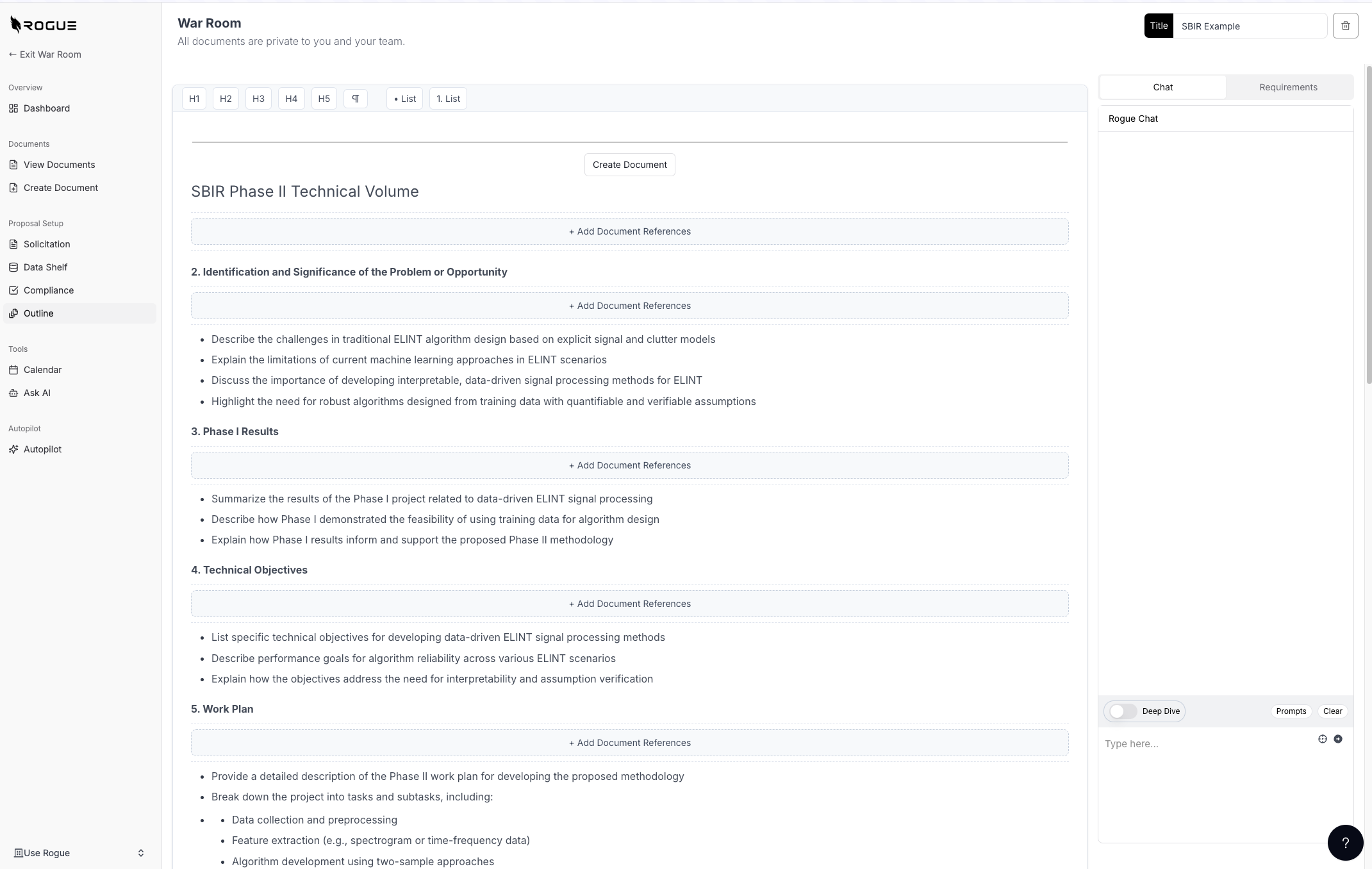
The outline feature in Rogue is a powerful tool for structuring your proposal responses. Your outline serves as the complete response framework for your solicitation, organizing content across multiple volumes and sections.
 ## Understanding Outline Structure
### Document Hierarchy
* Each Heading 1 (H1) represents a different volume/document in your proposal
* Each Heading 2 (H2) represents a different section within that volume/document
* Additional heading levels (up to H6) allow for detailed subsection organization
* Rogue will maintain this hierarchical structure when drafting the response
### Mapping Requirements
You can easily map solicitation requirements to your outline:
1. Toggle the chat to requirements mode in the right sidebar
2. For each requirement:
* Click the AI sparkles icon to get suggestions for the most appropriate section
* Use the arrow button to insert the requirement into the suggested outline section
3. When generating the first draft, Rogue will automatically write content addressing each mapped requirement
### Collaborative Features
The outline tool is designed for team collaboration:
* Multiple team members can edit the outline simultaneously
* Changes are synchronized in real-time
* Team members can use the chat interface for guidance and suggestions
### Using Chat to Modify Your Outline
The chat interface is a powerful AI assistant that's already aware of your outline's content and context. You can interact with it naturally, just like talking to a junior proposal writer. Here's how to use it effectively:
#### Direct Instructions
Simply tell the chat what you want to modify in your outline:
* "Add a new section for past performance under Volume 2"
* "Split the technical approach into three subsections"
* "Reorganize the management volume to emphasize our agile methodology"
#### Formatting Instructions
You can include specific formatting requirements under any heading:
* Page counts (e.g., "Technical Approach: 15 pages")
* Writing style guidelines
* Section-specific requirements
Add these as either a bullet list or paragraph under the relevant heading. For example:
```
### 2.1 Technical Approach
- Maximum 15 pages
- Use active voice
- Include at least 2 diagrams
- Focus on innovative solutions
```
#### AI-Powered Suggestions
The chat can help you improve your outline by:
* Suggesting better section organization
* Identifying missing content areas
* Recommending compliance improvements
* Providing writing style guidance
Use the outline like a text editor while chatting with the AI. As you discuss changes, you can directly edit the outline, and the AI will maintain awareness of your updates.
## Creating Documents
When your outline is ready:
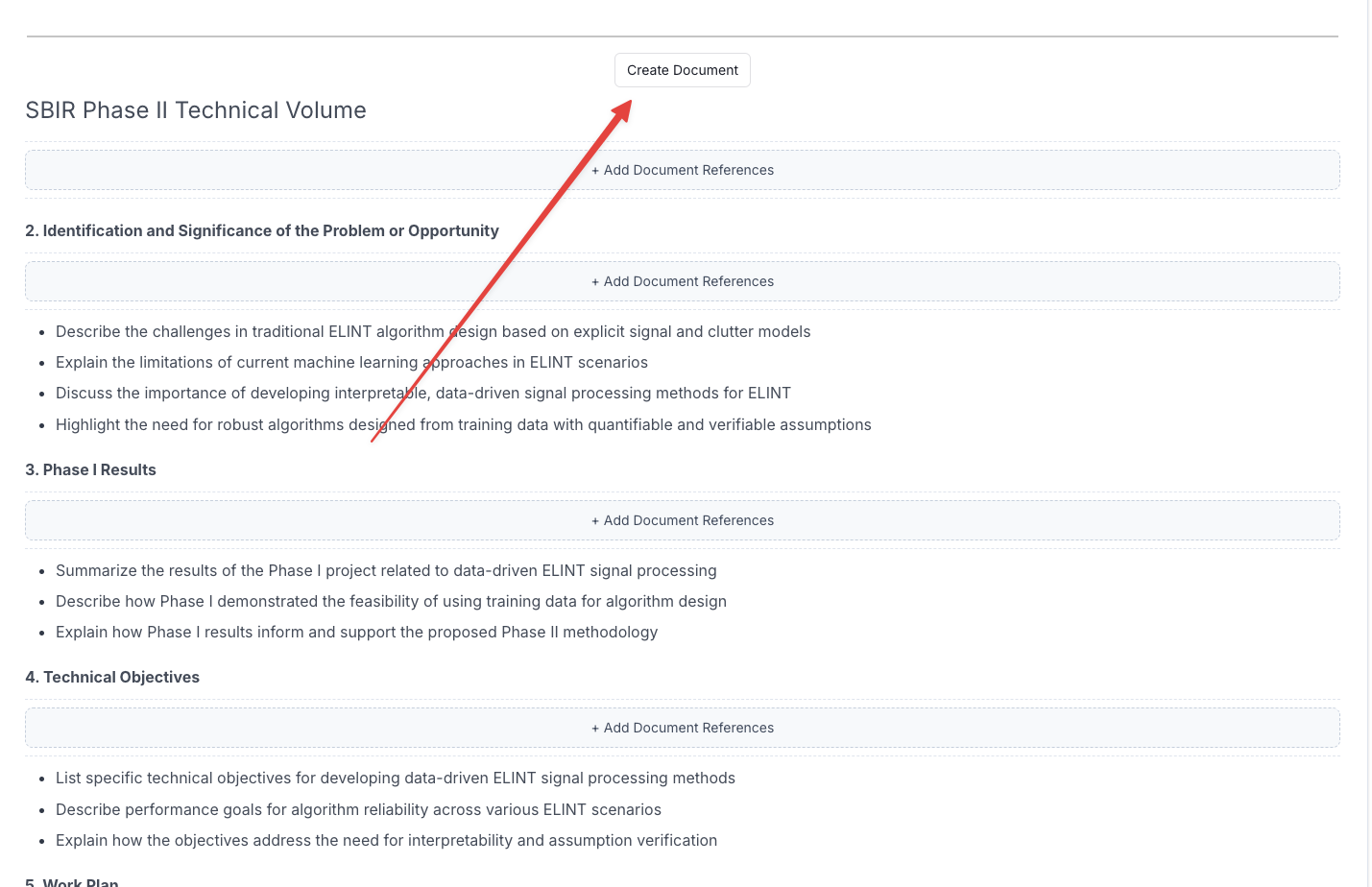
1. Locate the "Create Document" button above each volume/document (H1 section)
2. Click the button to generate that specific volume
3. Rogue will create a new document maintaining your outline structure
## Understanding Outline Structure
### Document Hierarchy
* Each Heading 1 (H1) represents a different volume/document in your proposal
* Each Heading 2 (H2) represents a different section within that volume/document
* Additional heading levels (up to H6) allow for detailed subsection organization
* Rogue will maintain this hierarchical structure when drafting the response
### Mapping Requirements
You can easily map solicitation requirements to your outline:
1. Toggle the chat to requirements mode in the right sidebar
2. For each requirement:
* Click the AI sparkles icon to get suggestions for the most appropriate section
* Use the arrow button to insert the requirement into the suggested outline section
3. When generating the first draft, Rogue will automatically write content addressing each mapped requirement
### Collaborative Features
The outline tool is designed for team collaboration:
* Multiple team members can edit the outline simultaneously
* Changes are synchronized in real-time
* Team members can use the chat interface for guidance and suggestions
### Using Chat to Modify Your Outline
The chat interface is a powerful AI assistant that's already aware of your outline's content and context. You can interact with it naturally, just like talking to a junior proposal writer. Here's how to use it effectively:
#### Direct Instructions
Simply tell the chat what you want to modify in your outline:
* "Add a new section for past performance under Volume 2"
* "Split the technical approach into three subsections"
* "Reorganize the management volume to emphasize our agile methodology"
#### Formatting Instructions
You can include specific formatting requirements under any heading:
* Page counts (e.g., "Technical Approach: 15 pages")
* Writing style guidelines
* Section-specific requirements
Add these as either a bullet list or paragraph under the relevant heading. For example:
```
### 2.1 Technical Approach
- Maximum 15 pages
- Use active voice
- Include at least 2 diagrams
- Focus on innovative solutions
```
#### AI-Powered Suggestions
The chat can help you improve your outline by:
* Suggesting better section organization
* Identifying missing content areas
* Recommending compliance improvements
* Providing writing style guidance
Use the outline like a text editor while chatting with the AI. As you discuss changes, you can directly edit the outline, and the AI will maintain awareness of your updates.
## Creating Documents
When your outline is ready:
1. Locate the "Create Document" button above each volume/document (H1 section)
2. Click the button to generate that specific volume
3. Rogue will create a new document maintaining your outline structure
 Important: Do not use the outline tool for RFI responses. For RFIs, skip directly to creating a document and select 'RFI' as your document type.