> ## Documentation Index
> Fetch the complete documentation index at: https://docs.userogue.com/llms.txt
> Use this file to discover all available pages before exploring further.
# Troubleshooting
> Common issues and their solutions
## Window Size Error
If you encounter the error message "Rogue does not support this window size. Please resize your window (or zoom out)", this means your browser window is either too small or the zoom level is incompatible with the editor.
### Solution
To fix this issue, you can:
* **Resize your browser window** - Make your browser window larger by dragging the edges
* **Zoom out** - Use keyboard shortcuts to adjust the zoom level:
* **Windows/Linux**: Press `Ctrl` + `-` (minus key) to zoom out
* **Mac**: Press `Cmd` + `-` (minus key) to zoom out
* Continue pressing the shortcut until the editor displays properly
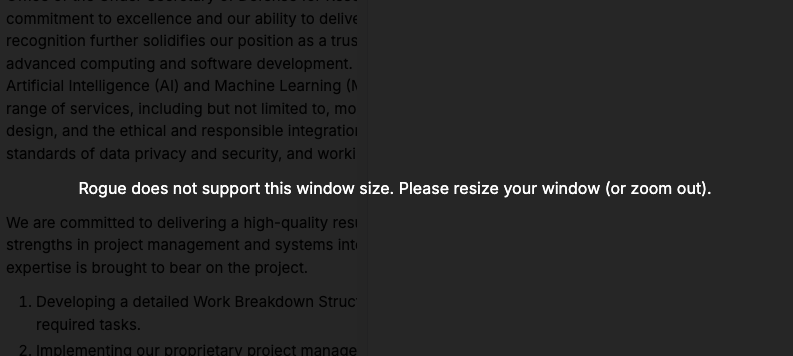 The editor requires a minimum window size to ensure all features and controls are properly accessible and the user experience remains optimal.
## Invitation Issues
**Quick Solutions for Common Issues:**
* Can't find invitation email? Check spam folder and verify correct email address
* Invalid invitation error? Links expire after 7 days - request a new one
* Email mismatch with SSO? Check your actual email at [app.userogue.com/settings/user](https://app.userogue.com/settings/user)
* Already accepted error? You may already be in the organization - check [app.userogue.com/select-organization](https://app.userogue.com/select-organization)
### Can't Find Invitation Email
If you haven't received an invitation email:
1. **Check your spam/junk folder** - Invitation emails sometimes get filtered
2. **Verify the correct email address** - Ask the person who invited you to confirm they used the right email
3. **Request a resend** - Organization admins can resend invitations from their dashboard
4. **Check expiration** - Invitations expire after 7 days and must be requested again
### "Invalid or Expired Invitation" Error
This error appears when:
* **Invitation has expired** - All invitation links expire after 7 days for security
* **Link already used** - Invitation links can only be used once
* **Invitation was canceled** - The organization admin may have canceled the invitation
**Solution:** Contact the organization admin to send you a new invitation.
### "Already Accepted" Error
If you see this error, you've likely already joined the organization:
1. **Check if you're already a member** - Navigate to [app.userogue.com/select-organization](https://app.userogue.com/select-organization) to see all organizations you belong to
2. **Verify you're logged into the correct account** - You might have multiple Rogue accounts
3. **Contact the admin** - If you don't see the organization, ask the admin to check your membership status
### Email Mismatch Issues (SSO Users)
This is a common issue for users with Single Sign-On (SSO) authentication. Your SSO identifier might be different from the email address you normally use.
**The Problem:** Corporate SSO systems sometimes use different email formats or identifiers than your regular email address.
**Solution:**
1. **Find your actual Rogue email** - Navigate to [app.userogue.com/settings/user](https://app.userogue.com/settings/user) while logged in
2. **Share the correct email** - Give this email address to the person inviting you
3. **Case sensitivity matters** - Email addresses must match exactly (including capitalization)
**Example:** Your work email might be `john.smith@company.com`, but your SSO identifier in Rogue could be `jsmith@company.com` or `John.Smith@company.com`.
### "No Available Seats" Error
This means the organization has reached its user limit:
1. **Contact the organization admin** - They need to upgrade their plan or remove inactive users
2. **Check plan limits** - Admins can see current usage in Settings > Organization
3. **Wait for seat availability** - Admin may need to remove inactive members first
### Can't Accept Invitation (Button Not Working)
If the "Accept Invitation" button doesn't work:
1. **Clear browser cache and cookies** - Old data can interfere with the process
2. **Try incognito/private browsing mode** - This bypasses cached data and extensions
3. **Try a different browser** - Switch to Chrome, Firefox, Safari, or Edge
4. **Disable browser extensions** - Some extensions can block the invitation process
5. **Check your network** - Corporate firewalls sometimes block invitation acceptance
### Multiple Account Issues
If you have multiple Rogue accounts:
1. **Ensure correct account** - Log out completely and log back in with the correct email
2. **Check email case sensitivity** - `john@company.com` and `John@company.com` are different accounts
3. **Consolidate accounts** - Contact support if you need to merge accounts
### Invitation Was Canceled
Organization admins can cancel pending invitations. If this happens:
1. **Contact the admin** - Ask them to send a new invitation
2. **Verify your email** - Confirm they're using the correct email address
3. **Check timing** - There might have been a miscommunication about when you'd accept
## For Organization Admins
### Managing Invitations
**To resend an invitation:**
1. Go to Settings > Organization > Members
2. Find the pending invitation
3. Click "Resend" next to the user's email
**To cancel an invitation:**
1. Go to Settings > Organization > Members
2. Find the pending invitation
3. Click "Cancel" to remove the invitation
**To check invitation status:**
* Pending invitations show in the Members section
* You can see when invitations were sent and their expiration dates
* Track which invitations have been accepted or are still pending
### User Seat Management
**Check current usage:**
* View active users vs. plan limits in Settings > Organization
* See which seats are occupied and which are available
* Monitor approaching seat limits
**Free up seats:**
* Remove inactive users who no longer need access
* Consider upgrading your plan if you need more seats
* Deactivate users temporarily instead of removing them completely
The editor requires a minimum window size to ensure all features and controls are properly accessible and the user experience remains optimal.
## Invitation Issues
**Quick Solutions for Common Issues:**
* Can't find invitation email? Check spam folder and verify correct email address
* Invalid invitation error? Links expire after 7 days - request a new one
* Email mismatch with SSO? Check your actual email at [app.userogue.com/settings/user](https://app.userogue.com/settings/user)
* Already accepted error? You may already be in the organization - check [app.userogue.com/select-organization](https://app.userogue.com/select-organization)
### Can't Find Invitation Email
If you haven't received an invitation email:
1. **Check your spam/junk folder** - Invitation emails sometimes get filtered
2. **Verify the correct email address** - Ask the person who invited you to confirm they used the right email
3. **Request a resend** - Organization admins can resend invitations from their dashboard
4. **Check expiration** - Invitations expire after 7 days and must be requested again
### "Invalid or Expired Invitation" Error
This error appears when:
* **Invitation has expired** - All invitation links expire after 7 days for security
* **Link already used** - Invitation links can only be used once
* **Invitation was canceled** - The organization admin may have canceled the invitation
**Solution:** Contact the organization admin to send you a new invitation.
### "Already Accepted" Error
If you see this error, you've likely already joined the organization:
1. **Check if you're already a member** - Navigate to [app.userogue.com/select-organization](https://app.userogue.com/select-organization) to see all organizations you belong to
2. **Verify you're logged into the correct account** - You might have multiple Rogue accounts
3. **Contact the admin** - If you don't see the organization, ask the admin to check your membership status
### Email Mismatch Issues (SSO Users)
This is a common issue for users with Single Sign-On (SSO) authentication. Your SSO identifier might be different from the email address you normally use.
**The Problem:** Corporate SSO systems sometimes use different email formats or identifiers than your regular email address.
**Solution:**
1. **Find your actual Rogue email** - Navigate to [app.userogue.com/settings/user](https://app.userogue.com/settings/user) while logged in
2. **Share the correct email** - Give this email address to the person inviting you
3. **Case sensitivity matters** - Email addresses must match exactly (including capitalization)
**Example:** Your work email might be `john.smith@company.com`, but your SSO identifier in Rogue could be `jsmith@company.com` or `John.Smith@company.com`.
### "No Available Seats" Error
This means the organization has reached its user limit:
1. **Contact the organization admin** - They need to upgrade their plan or remove inactive users
2. **Check plan limits** - Admins can see current usage in Settings > Organization
3. **Wait for seat availability** - Admin may need to remove inactive members first
### Can't Accept Invitation (Button Not Working)
If the "Accept Invitation" button doesn't work:
1. **Clear browser cache and cookies** - Old data can interfere with the process
2. **Try incognito/private browsing mode** - This bypasses cached data and extensions
3. **Try a different browser** - Switch to Chrome, Firefox, Safari, or Edge
4. **Disable browser extensions** - Some extensions can block the invitation process
5. **Check your network** - Corporate firewalls sometimes block invitation acceptance
### Multiple Account Issues
If you have multiple Rogue accounts:
1. **Ensure correct account** - Log out completely and log back in with the correct email
2. **Check email case sensitivity** - `john@company.com` and `John@company.com` are different accounts
3. **Consolidate accounts** - Contact support if you need to merge accounts
### Invitation Was Canceled
Organization admins can cancel pending invitations. If this happens:
1. **Contact the admin** - Ask them to send a new invitation
2. **Verify your email** - Confirm they're using the correct email address
3. **Check timing** - There might have been a miscommunication about when you'd accept
## For Organization Admins
### Managing Invitations
**To resend an invitation:**
1. Go to Settings > Organization > Members
2. Find the pending invitation
3. Click "Resend" next to the user's email
**To cancel an invitation:**
1. Go to Settings > Organization > Members
2. Find the pending invitation
3. Click "Cancel" to remove the invitation
**To check invitation status:**
* Pending invitations show in the Members section
* You can see when invitations were sent and their expiration dates
* Track which invitations have been accepted or are still pending
### User Seat Management
**Check current usage:**
* View active users vs. plan limits in Settings > Organization
* See which seats are occupied and which are available
* Monitor approaching seat limits
**Free up seats:**
* Remove inactive users who no longer need access
* Consider upgrading your plan if you need more seats
* Deactivate users temporarily instead of removing them completely